

Real User Monitoring Configuration
This page documents all configuration options for Optima's Real User Monitoring (RUM) SDK. You'll find details on available settings, integration methods, and how to customize the SDK for your application's needs.

Prerequisites
Before you begin, make sure you have:
- A web application (any framework or vanilla JavaScript)
- Basic knowledge of HTML/JavaScript
- Access to your application's codebase
Step 1: Create Your Account
- Sign up at optimajs.com
- Verify your email address
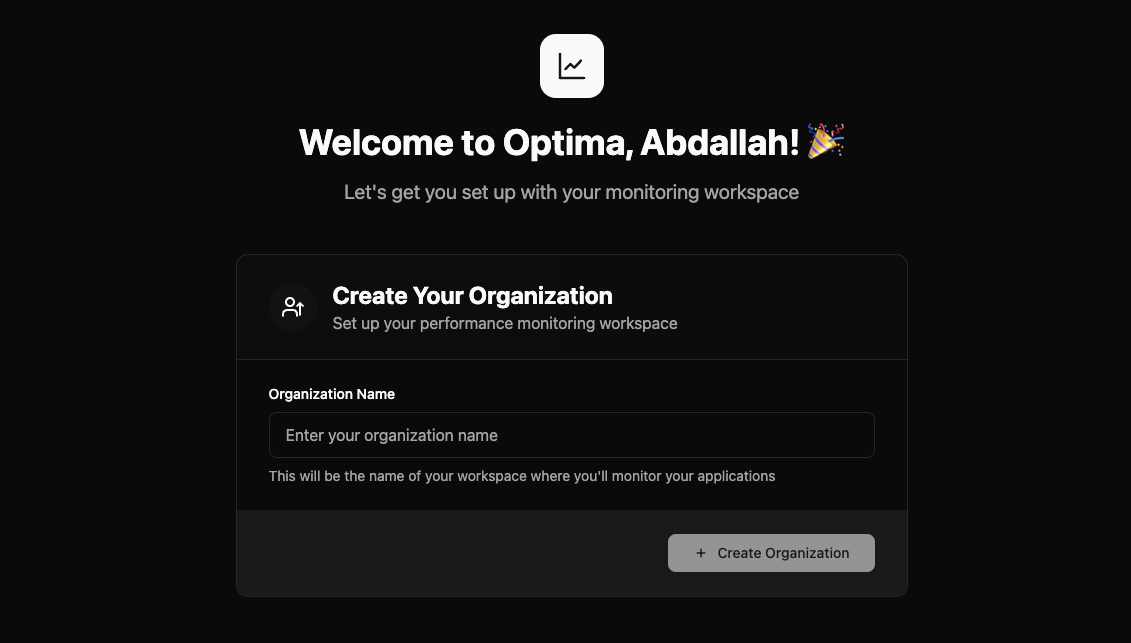
- Create your organization or accept a team invitation
- Create your first project and get your API key
Try the Demo First
Want to explore Optima's features before setting up? Try our interactive sandbox with sample data.
Step 2: Install the SDK
Add this script to your HTML <head> section and replace YOUR_API_KEY with your actual one:
<script>
  (function(w, d, s, o) {
    w['OptimaSDK'] = o;
    w[o] = w[o] || function() {
      (w[o].q = w[o].q || []).push(arguments)
    };
    w[o].l = 1 * new Date();

    var a = d.createElement(s);
    a.async = 1;
    a.src = 'https://www.optimajs.com/optima-sdk.js';

    var m = d.getElementsByTagName(s)[0];
    m.parentNode.insertBefore(a, m);
  })(window, document, 'script', 'optima');

  optima('init', 'YOUR_API_KEY', {
    sampleRate: 100,
    endpoint: 'https://optima-server-579877642650.us-central1.run.app'
  });
</script>Step 3: Release & Celebrate
Congrats! You’ve finished setup. Go ahead and deploy your changes, or just refresh your app and start clicking around—Optima is now tracking real user data. Enjoy your new performance superpowers! 🎉
Step 4: Basic Configuration
The SDK works with zero configuration, but you can customize it:
new Optima({
  apiKey: 'YOUR_API_KEY',
  endpoint: 'https://api.optimajs.com',

  // Data collection settings
  sampleRate: 100,              // Percentage of sessions to monitor (1-100)
  flushInterval: 5000,          // How often to send data (ms)
  webVitalsBatchDelay: 2000,    // Time to wait before sending web vitals

  // Feature toggles
  captureErrors: true,          // JavaScript error tracking
  captureResources: true,       // Resource timing data
  captureAjaxRequests: true,    // AJAX/Fetch monitoring

  // Advanced settings
  debug: false,                 // Enable debug logging
  enableRouteChangeTracking: true, // SPA route detection
  enableContinuousMetrics: true,   // Real-time metric updates
});Step 4: User Identification (Optional)
Associate performance data with user information:
// Identify users to get better insights
optima('identify', {
  email: 'user@example.com',
  name: 'John Doe',
  plan: 'pro',
  userId: 'user_12345',
  company: 'Acme Corp',
  // Add any custom properties
  signupDate: '2025-01-15',
  userRole: 'admin'
});🔧 Advanced Configuration
Custom Events
Track custom business metrics:
// Track custom events
optima('track', 'purchase_completed', {
  value: 99.99,
  currency: 'USD',
  items: 3
});

// Track user interactions
optima('track', 'button_clicked', {
  button_id: 'cta-header',
  page: '/pricing'
});Performance Marks
Add custom timing marks:
// Mark important moments
performance.mark('checkout-start');
// ... checkout process
performance.mark('checkout-complete');

// Optima will automatically collect these marksFramework Integration
React
// In your main App component
useEffect(() => {
  optima('pageview', {
    page: location.pathname,
    title: document.title
  });
}, [location]);Vue.js
// In your router
router.afterEach((to) => {
  optima('pageview', {
    page: to.path,
    title: to.meta.title || document.title
  });
});🚨 Troubleshooting
Common Issues
No data appearing in dashboard:
- Check your API key is correct
- Verify the SDK is loading (check Network tab)
- Ensure you're not blocking the endpoint
Console errors:
- Check for Content Security Policy restrictions
- Verify the SDK URL is accessible
- Ensure proper initialization order
Missing user journeys:
- Enable
enableRouteChangeTracking: true - For SPAs, ensure proper route change detection
Debug Mode
Enable debug logging to troubleshoot:
new Optima({
  apiKey: 'YOUR_API_KEY',
  debug: true // Enable detailed console logging
});✅ Next Steps
Now that you have RUM set up:
- Explore your dashboard - Familiarize yourself with the interface
- Set up alerts - Get notified when performance degrades
- Analyze user journeys - Understand how users navigate your app
- Optimize based on data - Use insights to improve performance
- Consider Lab Testing - Add controlled testing for complete coverage
Pro Tip
Combine RUM with our Lab Testing for comprehensive performance monitoring. RUM shows real-world performance while Lab Testing provides controlled analysis.